

Where is everyone?
To find out, you could write a Vantiq Client application with a DynamicMapView widget.
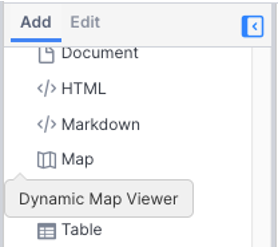
DynamicMapViewer widgets in the Vantiq Client are Google maps. This means the Maps JavaScript API is integrated within the Vantiq Client. Developers don’t have to download the Google Map API themselves, nor do they have to have an API key. All of that is already handled in the development environment.
Another bonus: Vantiq’s version of the DynamicMapViewer is already configured to accept Datastream input and display it, no code required. Here we are tracking our friends “Bill, May and Joe” through their wanderings in Paris, in real-time:
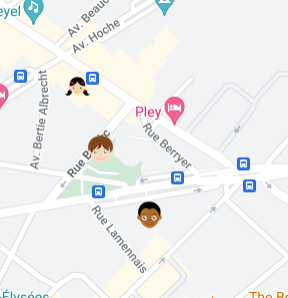
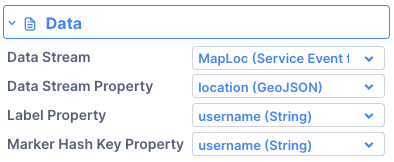
Ok, but how do we interact with the map itself? Really, it’s pretty much the same way we interact with any widgets in the Client, only check the Google documentation to know what properties to set:
- Grab the DynamicMapViewer widget with the getWidget(“<widget_name”>) command
- Set the properties.
- If needed, apply those properties to the widget.
Example 1: Setting Map Location and Focus
    var mapWidget = client.getWidget("ParisMap");
    var map = mapWidget.map
    map.setCenter({lat: 48.855555, lng: 2.30333});
    map.setZoom(15);
“ParisMap” is the widget’s name. By setting the mapWidget to the variable “map,” we’re getting an instance of a Google Map class.
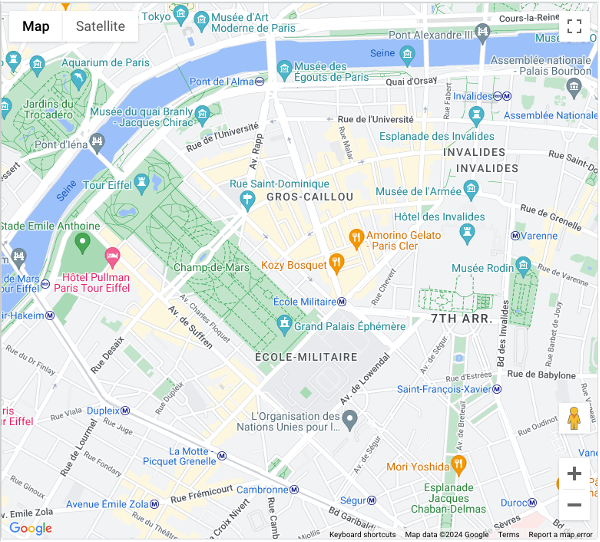
Now for the fun stuff. The setCenter line will place the map display somewhere in Paris. Without the setZoom line, the default result will cover most of Europe and the UK:
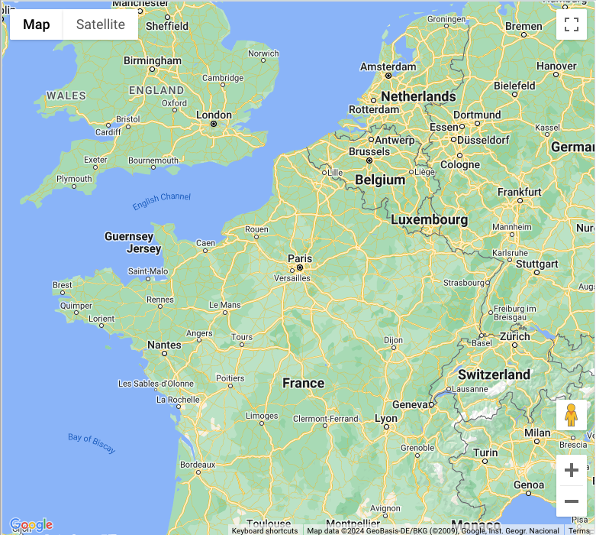
On a scale of 1 to 20, the higher the zoom, the closer the view. Our setting of 15 takes us to a neighborhood:
Example 2: Placing Markers
for (let i=0; i<client.data.waypoints.length; i++) {
        var a = new google.maps.Marker({position: {lat: client.data.waypoints[i].waypoint.coordinates[1], lng: client.data.waypoints[i].waypoint.coordinates[0], label : "i" , map: map}});
        a.setMap(map);
}
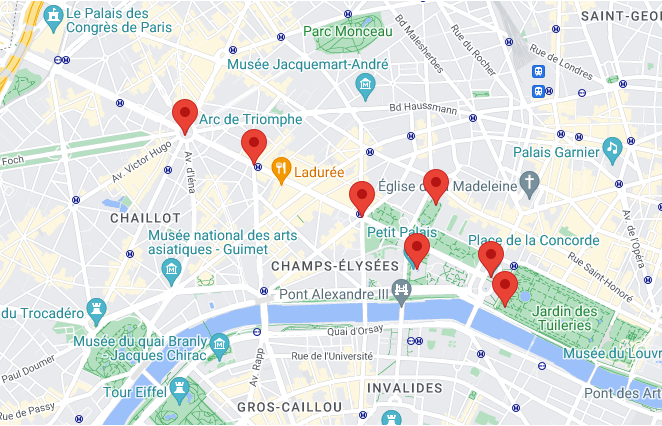
In this case, we’ve stored an array of GeoJSON data into a Client data object, and by looping through the array, we can lay down a bunch of markers into our map:
Example 3: Lines and Regions
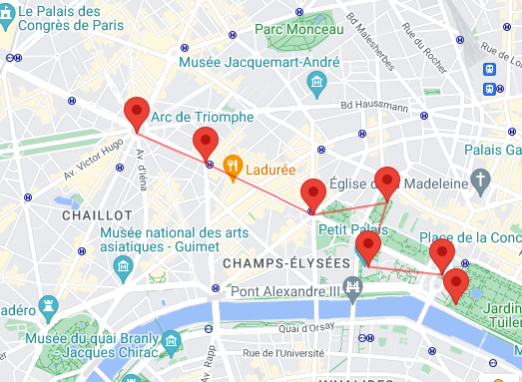
Let’s draw a line between each marker to outline our intended walking route:
const walkingPath = [
    { lat: 48.87360, lng: 2.294961 },
    { lat: 48.871888, lng: 2.300867 },
    { lat: 48.868972, lng: 2.310153 },
    { lat: 48.869616, lng: 2.316444 },
    { lat: 48.866035, lng: 2.314815 },
    { lat: 48.865556, lng: 2.321172 },
    { lat: 48.863866, lng: 2.322428 },
  ];

  const wanderings = new google.maps.Polyline({
    path: walkingPath,
    geodesic: true,
    strokeColor: "#FF0000",
    strokeOpacity: 0.5,
    strokeWeight: 2,
  });

  wanderings.setMap(map);
And the result:
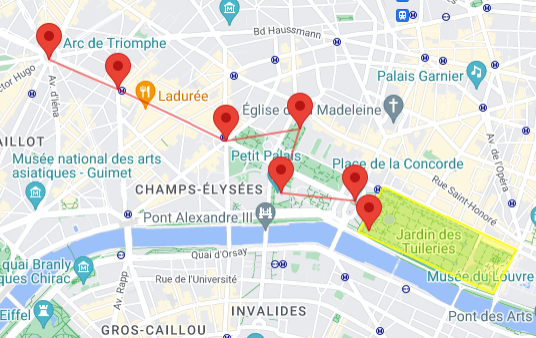
Let’s also highlight our meeting place at the park:
const Jardin = [
    { lat: 48.866364, lng: 2.323694 },
    { lat: 48.862773, lng: 2.335120 },
    { lat: 48.860301, lng: 2.333112 },
    { lat: 48.863825, lng: 2.321583 },
    { lat: 48.866364, lng: 2.323694 }
  ];

  // Construct the polygon.
  const meetingPlace = new google.maps.Polygon({
    paths: Jardin,
    strokeColor: "#FFFF00",
    strokeOpacity: 0.9,
    strokeWeight: 2,
    fillColor: "#FFFF00",
    fillOpacity: 0.35,
  });

  meetingPlace.setMap(map);
Example 4: Using Services
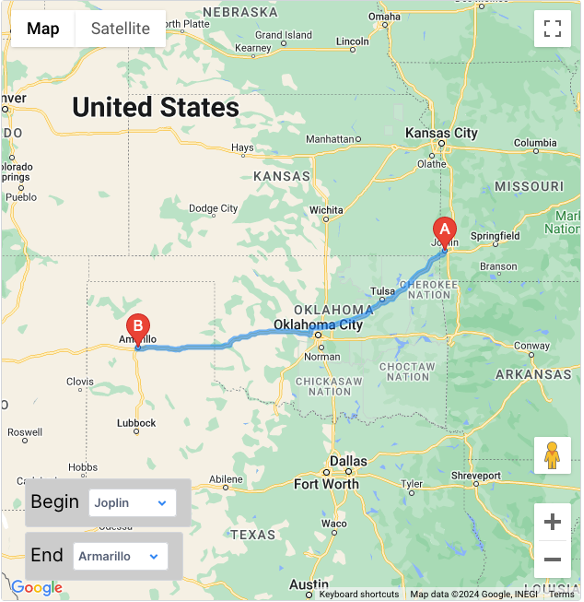
Developers can do more with the DynamicMapViewer than just drawing on it. We can take full advantage of the Google Services available. As an example, let’s invoke the Directions Service on a map widget. You can see the Google example here.
Using Vantiq Client widgets, here is our Start page ‘onStart’ code:
  const directionsService = new google.maps.DirectionsService();
  const directionsRenderer = new google.maps.DirectionsRenderer();
  var mapWidget = client.getWidget("Sydney");
  var map = mapWidget.map;
  map.setCenter({lat: 41.85, lng: -87.65});
  map.setZoom(15);

  directionsRenderer.setMap(map);

  const onChangeHandler = function () {
    calculateAndDisplayRoute(directionsService, directionsRenderer);
  };

  var dl1 = client.getWidget("start2");
  dl1.addEventHandler("onChange",onChangeHandler);
  var dl2 = client.getWidget("end2");
  dl2.addEventHandler("onChange",onChangeHandler);

 function calculateAndDisplayRoute(directionsService, directionsRenderer) {
  directionsService
    .route({
      origin: {
        query: client.getWidget("start2").boundValue,
      },
      destination: {
        query: client.getWidget("end2").boundValue,
      },
      travelMode: google.maps.TravelMode.DRIVING,
    })
    .then((response) => {
      directionsRenderer.setDirections(response);
    })
    .catch((e) => window.alert("Directions request failed due to " + e));
}
To retrieve Client widgets, use client.getWidget(“widget_name”) . Add event listeners with <widgetInstance>.addEventHandler . With these simple changes to the example, we were able to use the Directions Service using all Vantiq Client widgets, including the two droplists for selecting the beginning and end of a route:
Conclusion:
The Vantiq Client includes a Google map widget called the DynamicMapViewer. Developers can take full advantage of Google’s Maps JavaScript API just by dragging the widget onto the canvas and adding a few lines of code.