

Vantiq has just come out with a new development tool, just for generative AI, called the GenAI Builder.
This tool allows developers to construct generative AI-related functionality in much the same way we build event flows in the AppBuilder as Visual Event Handlers. Select and drag in components from the palette on the left, into the GenAI Flow on the right.
But…we already had generative AI, so what does the GenAI Builder bring to the development table?
Fair question. And this month’s ‘Tiqs is dedicated to providing the answer.
GenAI Flows are not App Flows. Let’s get this possible misapprehension out of the way first. App Flows in Visual Event Handlers represent the flow of events through the application. The “flow” that appears in the GenAI builder is a logical progression through code; in other words, it’s a visual procedural flow. To use a product of the GenAI Builder, it will be connect to an activity task in a Visual Event Handler.
Nothing’s going away. This is another point that should be made clear: The GenAI Builder isn’t replacing any generative AI features we already have and enjoy, like the two two AppBuilder Activity Patterns for Generative AI: SubmitPrompt and AnswerQuestion. These will remain right where they are, and developers will continue to use them just as they always have.
Also, all the built-in AI-related Services that we’ve come to know and love, such as LLM, SemanticSearch, ConverationMemory and ChatMessage; these will remain! In fact, some of the procedures within them are taking on even more functionality, as Vantiq deepens its AI support.
Much of what the GAB can do, the VEH can do, too. Some developers will look at some of the components available in the GenAI Builder and think to themselves, I could do that in the Visual Event Handler, and they’d be right. If all you ever have to do with the generative AI in your applications is offer a prompt to a simple LLM or RAG response, you won’t need or want the deeper complexity that the GAB offers.
Other GenAI Builder components can be replicated in the VEH, but it will be more work. Take, for instance, the Categorize component. In the configuration, the developer sets what LLM will do the evaluation, and into what categories, after which, the task will work to separate the input it receives into those categories. Could you do this in the VEH? Sure. But you’d have to write a somewhat long prompt to a SubmitPrompt to get it to evaluate the input and return the exacting output.
The GenAI Builder shortcuts the development of complex generative AI work.
This won’t make sense without a reasonable use case, so here goes:
Let’s say you’ve built a chemical leak detection system. Let’s also say that several different kinds of chemicals are involved.
In the event of a confirmed leak, your AI should automatically inform the human staff:
- The dangers specific to that chemical
- Which government bodies must be notified of this hazard
- What specific steps are required to clean up that particular chemical
In other words, our program should issue three prompts to a LLM, which will conduct a semantic search on each to come up with the most informed response.
Can we do something like this in the Visual Event Handler with SubmitPrompt and AnswerQuestion? Short answer: Yes. But it’s simpler to accomplish in the GenAI Builder.
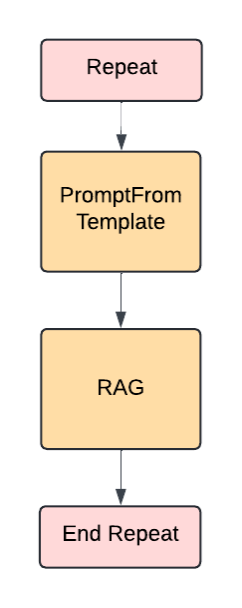
To most efficiently build our solution, we’ll make a GenAI Procedure that looks conceptually like this. The two middle parts have to be bundled into a custom Component because Repeat only accepts one task.
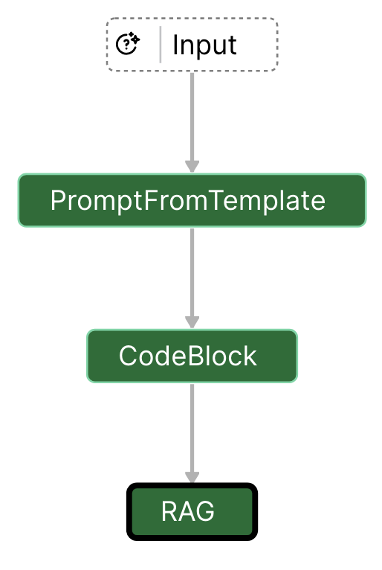
Step 1: Create a custom GenAI Component to hold the PromptFromTemplate, String conversion CodeBlock and RAG components together.
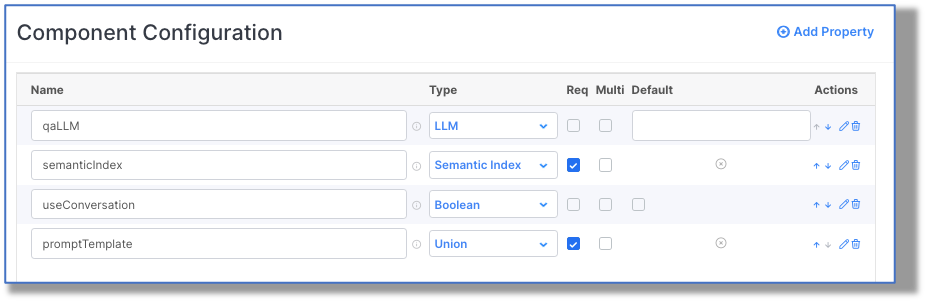
We’ll need at least the promptTemplate and the RAG settings exposed for configuration. The CodeBlock is just converting the output from the prompt to be a String type so the RAG can use it. VAIL code: return toString(input)
Here is the user-defined GenAI Component’s list of configurable properties:
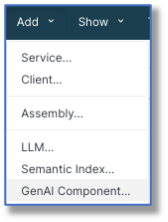
Step 2: Start a GenAI Procedure. This looks at lot like going to the Service where the procedure will be used, and clicking the “+” to add a new GenAI Procedure:
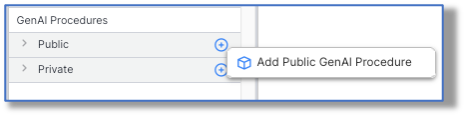
We’ll ultimately need more of these procedures: One each for questions about sulfuric acid, formaldehyde, etc., so we can call this particular procedure RepeatForH2SO4.
Step 3: In the GenAI Builder, build the procedure. Drag a Repeat component into the Flow, followed by the new Component, in this case called PromptRag, which is located in the User Defined category.
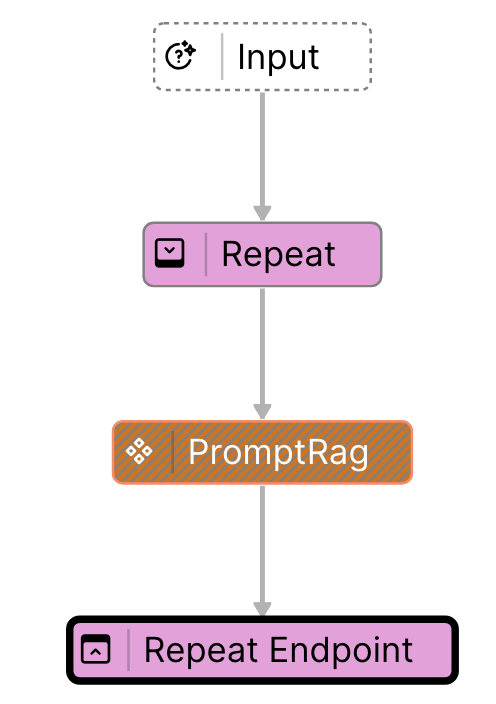
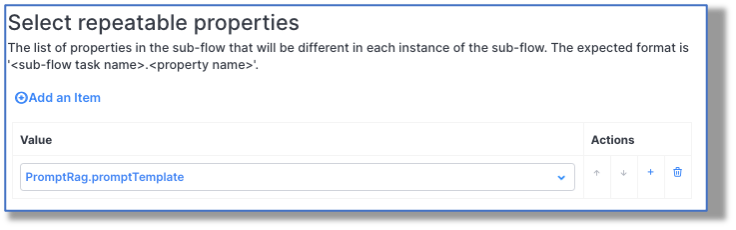
Step 4: Make the PromptTemplate repeatable, and set them up.
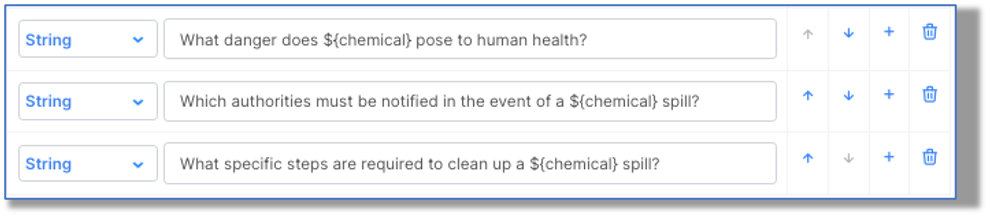
We’ll set up our array of prompts for the RAG like this:
In the custom Component, we’ll be sure to supply the Semantic Index and qaLLM settings. (We can type in anything for the promptTemplate; it won’t be used.)
Step 4: Verify that our new GenAI Procedure is working, by running it from the “play” button, and entering an object supplying the name of the chemical for the substitution variable in our prompts:

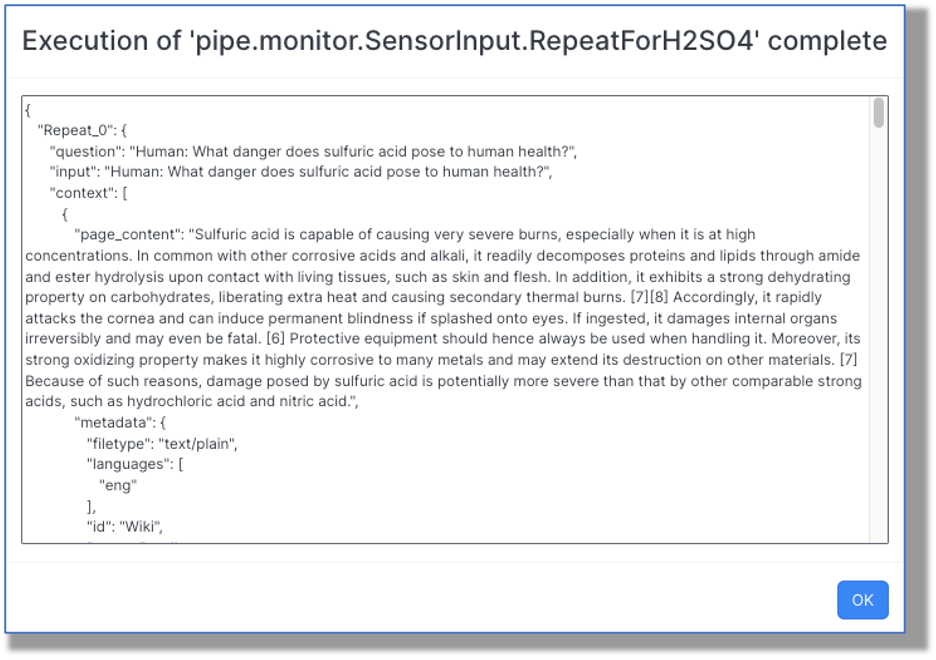
And the result is the RAG response to all three prompts, as Repeat_0, Repeat_1 and Repeat_2:
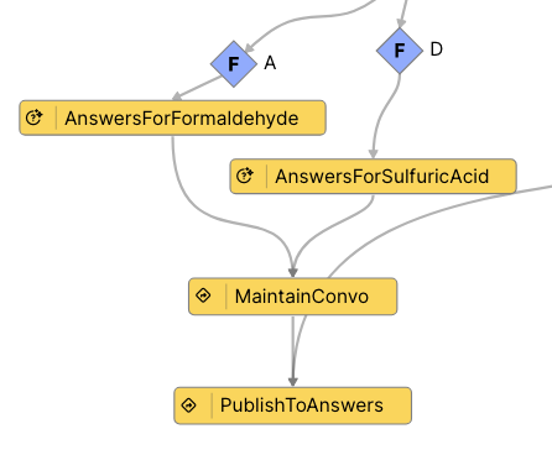
To call this procedure from a Visual Event Handler, just go to the Service Procedures category and drag it into the AppFlow. Here, we’re filtering by the Tank involved, and calling the appropriate GenAI procedure:
And how would it look if we didn’t use the GenAI Builder capabilities? Here’s a mock-up of the AppFlow for one of the chemicals:
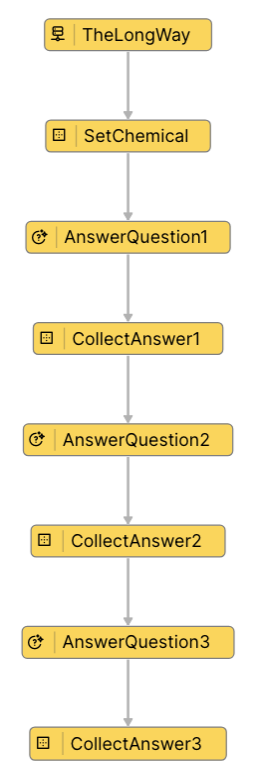
As you can see, it’s doable, but a bit more tedious.
Conclusion: Be sure to make the most of the GenAI Builder components when you want to create complex generative AI functionality for your project!